
How to Extract Emails from Microsoft Outlook?
 Rajesh
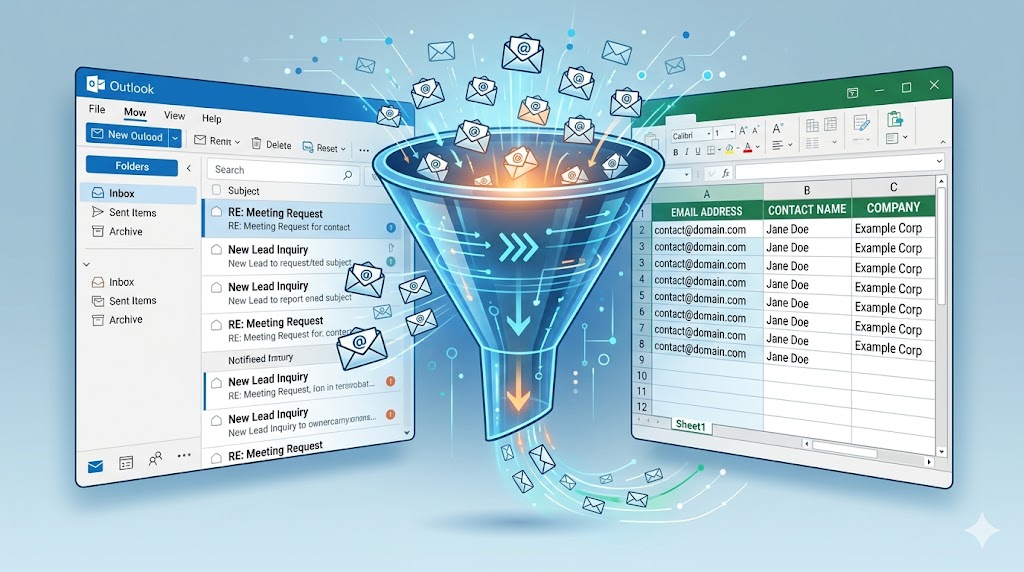
How to Extract Emails from Microsoft Outlook
If you have been doing business for any significant amount of time, your Microsoft Outlook inbox is likely a goldmine of untapped data. Buried inside years of communication—past client inquiries, vendor discussions, CC'd contacts on massive email threads, and lost leads—are thousands of valuable email addresses.
However, manually copying and pasting these addresses into a spreadsheet or CRM is not just tedious; it is an incredibly inefficient use of your time. Whether you are looking to build a retargeting audience, clean up your contact list, or launch a re-engagement campaign, you need a streamlined way to pull this data out of your inbox.
In this guide, we will break down exactly how to extract emails from Microsoft Outlook. From native export tools to custom scripts and automated extraction software, you will learn how to turn your crowded inbox into a neatly organized, actionable database.
Quick Answer
To extract emails from Microsoft Outlook, you can use the native "Import/Export" feature to generate a CSV file, write a custom VBA macro to pull addresses into Excel, or use automated Outlook Email Extractor software to instantly parse folders, remove duplicates, and export clean contact lists.
What is Outlook Email Extraction?
Outlook email extraction is the process of scanning through your Microsoft Outlook folders (Inbox, Sent Items, Sub-folders, or PST/OST files) to isolate and export email addresses.
Instead of saving individual contacts one by one, extraction allows you to pull the sender (From), recipient (To), and copied (CC/BCC) addresses from thousands of emails at once. This data is then formatted into a structured list, such as a CSV or Excel file, making it easy to upload to a CRM or marketing platform.
Why Extracting Emails from Outlook Matters for Your Business
Many businesses spend thousands of dollars acquiring new leads while completely ignoring the warm contacts already sitting in their email servers. Here is why mining your Outlook data is critical:
Methods & Solutions
Depending on your technical expertise and the volume of emails you need to process, there are three primary ways to extract this data.
Microsoft Outlook has a built-in feature that allows you to export folder data. This is best for small-scale, straightforward extractions.
1. The Process
Navigate to File > Open & Export > Import/Export. Select Export to a file, choose Comma Separated Values (CSV), and select the folder you want to export.
2. The Downside
This method exports the entire email data (subject lines, body text, dates), resulting in a messy spreadsheet. You will still have to spend hours manually cleaning the file to isolate just the email addresses and remove duplicates.
For more advanced users, you can write a VBA macro within Outlook to loop through your emails and extract specific fields into an Excel file.
1. The Process
You open the developer tab, insert a new module, and paste a custom script designed to grab the SenderEmailAddress and To fields.
2. The Downside
It requires coding knowledge. Furthermore, VBA scripts often struggle with large volumes of data, frequently crashing Outlook if you attempt to process tens of thousands of emails at once.
For sales teams, recruiters, and growth marketers, native tools and scripts are too slow and buggy. This is where dedicated desktop software comes in.
Using a specialized tool designed to extract emails from Microsoft Outlook is the fastest, most reliable method. These tools connect directly to your Outlook client or PST files, instantly parsing through emails, stripping away the body text, removing duplicates, and handing you a perfectly clean list of email addresses.
Step-by-Step Guide to Automated Outlook Extraction
Here is how you can seamlessly pull thousands of contacts from your inbox using an automated tool like the Outlook Email Extractor:
Select Your Source
Launch your extraction software. You will typically have the option to extract from your active Outlook profile or from offline PST/OST storage files. Choose the profile that houses the data you need.
Choose Your Target Folders
You likely don't need emails from your "Spam" or "Trash" folders. Select specific folders—such as your Inbox, Sent Items, or a custom folder where you route inbound leads.
Define Extraction Rules
Set your parameters. Do you want to extract only the sender's email? Do you want to include CC'd addresses? Some tools also allow you to filter by date range, ensuring you only pull recent contacts.
Execute the Extraction
Click start. The software will process your folders at high speed, automatically filtering out duplicate addresses so you are left with a clean, unique list of contacts.
Export to CSV/Excel
Once complete, hit export. You now have a pristine spreadsheet ready for CRM upload or email verification.
Best Practices & Common Mistakes
Always Deduplicate
A single client might email you 50 times in a month. Ensure your extraction method automatically removes duplicate addresses, or you will end up with a highly skewed database.
Verify Before You Send
Just because someone emailed you in 2021 does not mean they still work at that company. Before adding extracted emails to a new outreach campaign, pass them through a tool like the RS Email Verifier.
Segment Your Exports
Don't mix your "Sent Items" (which likely contains pitches) with your "Inbound Inquiries" folder. Extract them separately so you can tailor your messaging appropriately.
Spamming Past Contacts
Do not immediately drop a list of extracted emails into an aggressive cold email sequence. If they are past clients or loose connections, use a warm, re-engagement approach.
Extracting Internal Emails
Be sure to filter out your own company's domain (@yourcompany.com) during the extraction process so you don't accidentally add your coworkers to your marketing lists.
Ignoring Data Privacy
Ensure you have a legitimate business reason to contact the people you extract from your inbox, keeping GDPR and CAN-SPAM regulations in mind.
FAQs about Outlook Email Extraction
1. Can I extract emails from an old PST file without opening Outlook?
Yes, many automated extraction tools can process standalone PST or OST files directly, meaning you don't even need to have the Outlook application open or configured.
2. Will extracting emails delete them from my inbox?
No. Email extraction only copies the data (the email address and name). It does not move, delete, or alter the original emails residing in your Outlook folders.
3. How do I stop getting duplicate emails in my export?
If you are using the native CSV export, you will have to use the "Remove Duplicates" feature in Excel. If you use dedicated extraction software, deduplication is usually handled automatically during the scan.
4. What should I do after extracting the emails?
You should immediately run the list through an email verification service. People change jobs constantly, and emailing abandoned addresses will harm your sender reputation.
Conclusion
Your Outlook inbox is more than just a communication tool; it is a historical database of your business relationships. By extracting emails from your past conversations, you can uncover hidden leads, build powerful lookalike audiences, and ensure your CRM is comprehensively updated.
While manual exports work for small tasks, leveraging an automated Outlook Email Extractor will save you hours of formatting and data cleanup. Remember, once you extract your data, always clean it. Pair your extraction efforts with a reliable verification process, and you will turn your archived emails into a highly profitable asset.